On October 1, 2026, Huntress published its first “Tragic Quadrant,” a ranking of the attack techniques its SOC sees most often, plotted against how close each one brings a business to real damage. ChannelE2E picked it up on October 6, and Huntress walked through the techniques in a live hacking session on October 8.
The headline number is the one every MSP should read twice: in Q1 2026, 45% of the endpoint-related incidents Huntress investigated involved abuse of remote monitoring and management (RMM) tools. Huntress also says RMM abuse jumped 277% year over year in 2025 and is now the most common endpoint threat category it sees.
That’s our tooling. The same class of software we use every day to patch, support and monitor client machines is now the attacker’s favorite way to stay in. Here’s what the report says, why it’s hard to catch, and what I’d do about it at a small shop.
What the Tragic Quadrant actually says
Huntress built the quadrant from telemetry across more than 5 million endpoints and 15 million identities at nearly 300,000 organizations. The top-right corner, the one Huntress labels with a word I won’t print here, holds three things:
- RMM abuse: 45% of endpoint-related incidents in Q1 2026.
- Mailbox manipulation: 24.6% of suspicious identity detection signals so far in 2026 (think inbox rules that hide or forward mail).
- Adversary-in-the-middle (AiTM) account takeover: 18.9% of identity-based threats in 2025.
Two other numbers stood out to me. Huntress says roughly 70% of the active intrusions its SOC catches start with an attacker authenticating through a VPN, often with valid credentials and no second factor. And vulnerability exploitation sits in what it calls the “low-key deadly” corner, with attackers weaponizing flaws in products like Wing FTP Server, WSUS and Gladinet CentreStack and Triofox within days of disclosure.
None of that is exotic. That’s the point Jamie Levy, Huntress’s Senior Director of Adversary Tactics, made: why would an attacker build tools from scratch when a legitimate one is right there to pull off the shelf?
Why rogue RMM is so hard to spot
A rogue ScreenConnect install and your ScreenConnect install look almost the same. Same signed binaries, same service, same kind of outbound connection. Huntress makes this point directly in an August post on RMM abuse: rogue and approved installs look alike at the install, process and network level, so catching them depends on context, not on finding a “malicious” file.
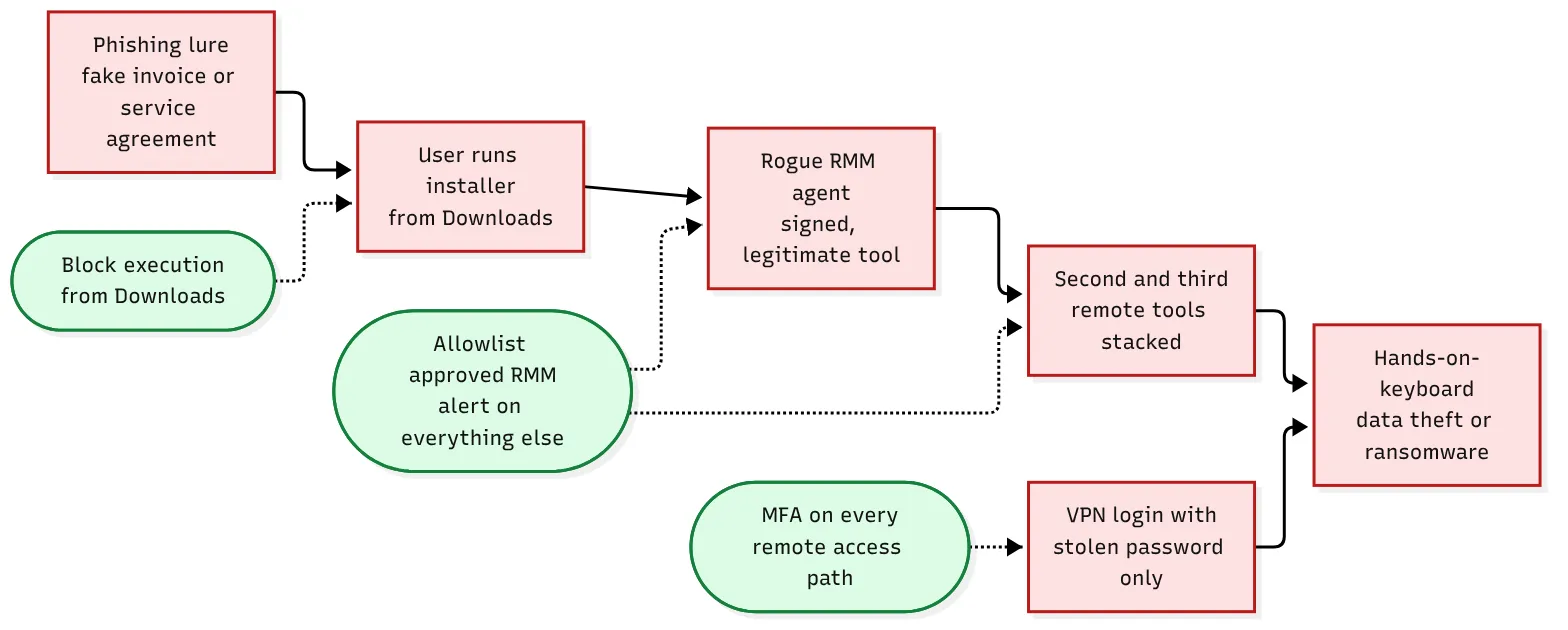
The examples in the report show how this plays out. In one case a fake service agreement installed Tiflux, and the attacker then stacked UltraVNC, Splashtop and ScreenConnect on the same machine. One phishing click, four ways back in. Huntress also described a rogue ScreenConnect install that sat unused for five months before the attacker came back to it.
If your antivirus is looking for malware, it won’t flag any of that. Every one of those tools is legitimate software doing exactly what it was built to do.
The question that matters: does this tool belong here?
Huntress frames detection as one question: should this RMM be on this machine? That’s a question only the people who manage the machine can answer, which is why I think this lands squarely on MSPs.
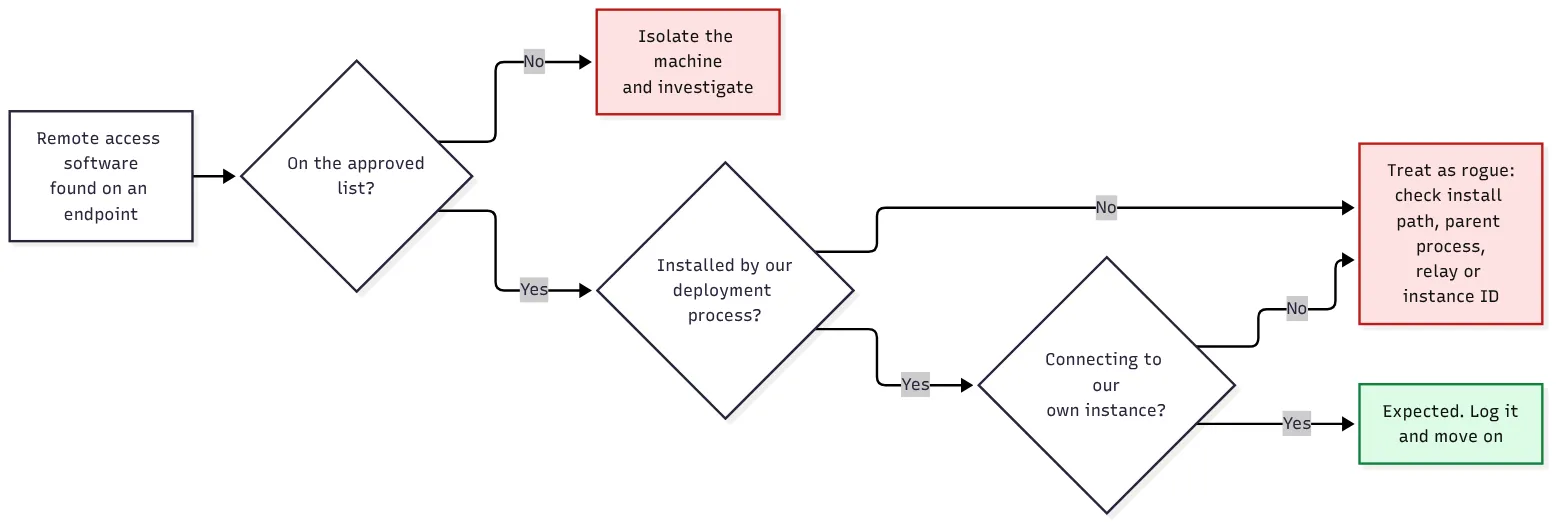 How I’d triage any remote access tool found on a client endpoint.
The middle and last checks matter as much as the first. An attacker running their own copy of the same tool you use passes the “is it on the approved list” test. It fails the “is it connected to our instance” test.
Step 1: Inventory every remote access tool
You can’t allowlist what you haven’t found. Here’s a PowerShell script I’d run across a fleet through whatever RMM you already trust. It checks installed programs, services and running processes for common remote access tools, then flags anything that doesn’t match your approved list.
# Find-RemoteAccessTools.ps1
# Lists remote access software found on this machine and flags anything not approved.
# Run as administrator. Exit code 1 means something unapproved was found.

# Patterns for the tools your shop actually uses. Be specific: for ScreenConnect,
# include your own instance ID so an attacker's ScreenConnect doesn't pass.
$Approved = @(
    'ScreenConnect Client \(0123456789abcdef\)'
)

# Common remote access tools to look for. Extend this list as you see new ones.
$Watch = 'AnyDesk|ScreenConnect|ConnectWise Control|Splashtop|TeamViewer|UltraVNC|TightVNC|RealVNC|Tiflux|Atera|NinjaRMM|NinjaOne|Action1|MeshAgent|RustDesk|Zoho Assist|LogMeIn|GoTo Resolve|SimpleHelp|Remote Utilities|DWService|Supremo'

$uninstallKeys = @(
    'HKLM:\SOFTWARE\Microsoft\Windows\CurrentVersion\Uninstall\*',
    'HKLM:\SOFTWARE\WOW6432Node\Microsoft\Windows\CurrentVersion\Uninstall\*'
)

$installed = Get-ItemProperty -Path $uninstallKeys -ErrorAction SilentlyContinue |
    Where-Object { $_.DisplayName -match $Watch } |
    Select-Object @{n='Source';e={'Installed'}}, @{n='Name';e={$_.DisplayName}}, @{n='Detail';e={$_.InstallLocation}}

$services = Get-CimInstance -ClassName Win32_Service |
    Where-Object { $_.DisplayName -match $Watch -or $_.PathName -match $Watch } |
    Select-Object @{n='Source';e={'Service'}}, @{n='Name';e={$_.DisplayName}}, @{n='Detail';e={$_.PathName}}

# Catches portable copies that were never installed, e.g. run straight from Downloads.
$processes = Get-CimInstance -ClassName Win32_Process |
    Where-Object { $_.Name -match $Watch -or $_.ExecutablePath -match $Watch } |
    Select-Object @{n='Source';e={'Process'}}, @{n='Name';e={$_.Name}}, @{n='Detail';e={$_.ExecutablePath}}

$findings = @($installed) + @($services) + @($processes) | Where-Object { $_ }

foreach ($f in $findings) {
    $ok = $false
    foreach ($pattern in $Approved) {
        if ($f.Name -match $pattern -or $f.Detail -match $pattern) { $ok = $true }
    }
    $f | Add-Member -NotePropertyName Approved -NotePropertyValue $ok
}

$findings | Sort-Object Approved, Source, Name | Format-Table -AutoSize -Wrap

if ($findings | Where-Object { -not $_.Approved }) { exit 1 } else { exit 0 }
📝 Note: The
$Approvedentries are regular expressions, so escape parentheses as shown. Replace0123456789abcdefwith the ID from your own ScreenConnect client service name. An approved process will usually show up twice (as a service and a process); that’s expected.
Expect the first run to be noisy. Old TeamViewer installs from a previous IT person, a vendor’s support tool someone installed three years ago, a copy of AnyDesk a user grabbed for a one-off call. Every one of those is a door. Remove what nobody can explain.
Step 2: Allowlist, then alert on everything else
Once you know what belongs, write it down. Huntress’s advice for the top-right corner starts here: define which RMM tools are approved, and alert on any others. In practice that means:
- Pick one remote tool per job, and make that the standard across every client. The fewer approved tools, the louder an unapproved one is.
- Schedule the inventory script to run daily through your RMM and open a ticket on exit code 1.
- Use application control where the client’s environment supports it, so unapproved remote tools can’t run at all, including attacker-owned copies of the tool you approved.
- Restrict running executables from Downloads. Huntress specifically asks whether users can launch binaries from their Downloads folder. That’s the exact step in the Tiflux example.
Step 3: Close the password-only doors
RMM abuse gets the headline, but the VPN number is the one I’d act on first. If roughly 70% of the intrusions Huntress’s SOC catches start with someone logging in through a VPN, often with nothing more than a password, then every remote access path needs a second factor. That means the VPN, the RMM console, the remote support tool’s web portal, and the email tenant.
Huntress’s other recommendations fit here too: baseline normal inbox rules, shorten session lifetimes, and require re-authentication from new devices or locations. Dray Agha of Huntress put the exposure side bluntly: anything you expose to the internet will get hammered, and RDP sits at the top of that list. If RDP is open to the internet on a client network, close it this week.
What I tell clients
Most of our clients will never read a threat report, and they shouldn’t have to. What I tell them is simple: “If anyone, including someone who says they’re from us, asks you to install a remote support app, call us at the number you already have before you click anything.” A legitimate tech already has access through the tools we deployed. A request to install something new is the red flag.
On our side, the job is to make sure that’s true: one approved toolset, MFA on every way in, and a daily check that tells us when something else shows up. None of it is glamorous, and it’s not new. The Tragic Quadrant is just a good reminder that the attacks hurting small businesses right now are mostly the boring ones.
Sources
- RMM abuse behind 45% of endpoint incidents as Huntress publishes inaugural Tragic Quadrant, IT Security Guru, October 1, 2026
- RMM abuse emerges as a top cybersecurity risk for MSPs, ChannelE2E, October 6, 2026
- Hacking the Tragic Quadrant, Huntress, live session October 8, 2026
- RMM Abuse: How Attackers Exploit Remote Access Tools, Huntress, August 21, 2026