If you back up client Microsoft 365 data with a cloud-to-cloud service, this was a bad week to be you, and a good week to go look at what you’ve granted those services.
Since last Thursday, a stolen credential belonging to ConnectWise Cloud Backup (the product that used to be SkyKick) has been used to sign in to customer Microsoft 365 tenants. ConnectWise switched the service off, and then switched off two related services too. Today Microsoft published its own write-up attributing the campaign to a China-aligned group.
I want to walk through what happened, why the usual controls didn’t stop it, and what I’d check in every tenant you manage, whether or not you’ve ever used ConnectWise.
What happened
Here’s the timeline as it stands today, from the sources linked at the end:
- Around October 15: a credential for the ConnectWise Cloud Backup application was used to sign in to customer Microsoft 365 tenants. Huntress published its first account on October 16 and, in its early reporting, confirmed unauthorized sign-ins in 162 tenants. They were also clear that the actor isn’t limited to the tenants they had confirmed so far.
- Inside the tenants: the attacker used that access to assign directory roles such as Global Administrator, and to add new client secrets to other trusted applications in the tenant. That second part is the persistence play, and it’s the part I’d worry about most.
- ConnectWise’s response: ConnectWise revoked the credential and suspended Cloud Backup. It also suspended ConnectWise SaaS Security and Cloud Management as a precaution, because they’re integrated with Cloud Backup. Scheduled backups aren’t running and restores aren’t available while the service is down. ConnectWise says the existing backup archives are encrypted and isolated and that it has no indication they were accessed, and it’s telling customers to keep the affected app connections offline until further notice.
- October 21 (today): Microsoft Threat Intelligence attributed the compromise to a group it tracks as Storm-0940, which it describes as China-state aligned. Microsoft also says the actor used an agentic AI penetration-testing framework it calls ARTEX to automate the work.
The AI angle will get the headlines. For those of us managing tenants, the more important detail is how the attacker got in.
Why MFA and Conditional Access didn’t help
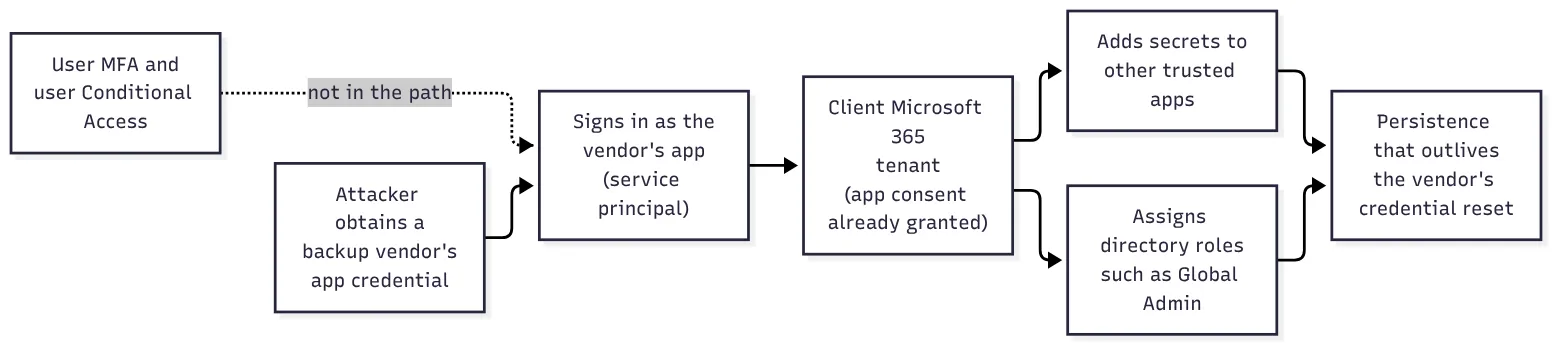 How an app-identity compromise reaches into a tenant. User-level controls never come into play.
This wasn’t a user account being phished. It was an application identity: the service principal that gets created in a client’s tenant when someone consents to a third-party app. A backup product has to read mail, OneDrive, SharePoint and Teams data for every user, so it’s granted broad, standing permissions. When the attacker signed in as that app, they signed in with everything the app was allowed to do.
User MFA and user Conditional Access policies weren’t in that path at all. That’s not a misconfiguration on anyone’s part. It’s how app-only access works in Microsoft 365. It’s also why I keep telling people that every SaaS tool you connect to a client tenant is part of that client’s attack surface, not just a line item on your stack.
The other uncomfortable part: rotating the vendor’s credential fixes the vendor’s credential. It does nothing about a secret the attacker added to a different app in your client’s tenant, or a role they assigned to themselves. That cleanup has to happen tenant by tenant.
What I’d check in every tenant
Microsoft’s guidance is to keep the ConnectWise connections disabled until ConnectWise says otherwise, find the affected apps by application ID rather than display name, review service principal sign-ins, look for changed credentials and privileged role assignments, and preserve configuration and logs before removing anything. Here’s how I’d turn that into a checklist:
- Find the apps. List every third-party enterprise app in the tenant with its application ID and object ID, and match the IDs against the ones ConnectWise and Microsoft published. Don’t search by name: display names can be changed, and a renamed app is exactly the one you’d miss.
- Export logs first. Pull the directory audit log and the service principal sign-in log for the period from early October on, and save them somewhere outside the tenant. Entra only keeps these for a limited time, and less on tenants without Entra ID P1 or P2.
- Disable, don’t delete. Set the affected service principals to disabled. Deleting them throws away the configuration you may need for the investigation, and Microsoft specifically says not to start there.
- Hunt for new credentials on every app, not just the ConnectWise ones. Any client secret or certificate added since early October that you can’t explain is a problem.
- Review privileged roles, especially Global Administrator. Look for service principals in admin roles and for role assignments made by an app rather than a person.
- Check service principal sign-ins in the Entra admin center (Sign-in logs, then the Service principal sign-ins tab) for unfamiliar IP addresses and apps signing in that normally don’t.
Here’s a read-only PowerShell script I’d start with for steps 1, 4 and 5. It uses the Microsoft Graph PowerShell SDK and doesn’t change anything in the tenant:
# Read-only triage for one tenant. Requires: Install-Module Microsoft.Graph -Scope CurrentUser
param(
    [Parameter(Mandatory)] [string] $TenantId,
    [datetime] $Since = '2026-10-01'
)

Connect-MgGraph -TenantId $TenantId -Scopes 'Application.Read.All','Directory.Read.All','AuditLog.Read.All' -NoWelcome

# 1. Every non-Microsoft enterprise app. Compare each AppId against the published IDs;
#    don't filter by name, because a display name can be changed.
Write-Host "`n== Third-party service principals ==" -ForegroundColor Cyan
$microsoftTenant = 'f8cdef31-a31e-4b4a-93e4-5f571e91255a'
Get-MgServicePrincipal -All -Property Id,AppId,DisplayName,AccountEnabled,AppOwnerOrganizationId |
    Where-Object { $_.AppOwnerOrganizationId -ne $microsoftTenant } |
    Sort-Object DisplayName |
    Format-Table DisplayName, AppId, Id, AccountEnabled -AutoSize

# 4. Any secret or certificate added since $Since, on any app registration or service principal
Write-Host "`n== Credentials added since $($Since.ToString('yyyy-MM-dd')) ==" -ForegroundColor Cyan
$objects  = @(Get-MgApplication -All -Property Id,AppId,DisplayName,PasswordCredentials,KeyCredentials)
$objects += @(Get-MgServicePrincipal -All -Property Id,AppId,DisplayName,PasswordCredentials,KeyCredentials)
$objects | ForEach-Object {
    $obj = $_
    @($obj.PasswordCredentials) + @($obj.KeyCredentials) |
        Where-Object { $_ -and $_.StartDateTime -ge $Since } |
        ForEach-Object {
            [pscustomobject]@{
                Object = $obj.DisplayName
                AppId  = $obj.AppId
                KeyId  = $_.KeyId
                Start  = $_.StartDateTime
            }
        }
} | Sort-Object Start | Format-Table -AutoSize

# 5. Who holds Global Administrator right now (users and service principals)
Write-Host "`n== Global Administrator members ==" -ForegroundColor Cyan
$ga = Get-MgDirectoryRole -Filter "roleTemplateId eq '62e90394-69f5-4237-9190-012177145e10'"
Get-MgDirectoryRoleMember -DirectoryRoleId $ga.Id -All |
    ForEach-Object {
        [pscustomobject]@{
            Type = $_.AdditionalProperties['@odata.type']
            Name = $_.AdditionalProperties['displayName']
            Id   = $_.Id
        }
    } | Format-Table -AutoSize

# Role assignments and credential changes from the audit log
Write-Host "`n== Role and credential changes in the audit log ==" -ForegroundColor Cyan
$filter = "activityDateTime ge $($Since.ToUniversalTime().ToString('yyyy-MM-ddTHH:mm:ssZ'))"
Get-MgAuditLogDirectoryAudit -All -Filter $filter |
    Where-Object { $_.ActivityDisplayName -match 'Add member to role|Certificates and secrets|service principal credentials' } |
    Select-Object ActivityDateTime, ActivityDisplayName,
        @{ n = 'Actor';  e = { if ($_.InitiatedBy.App.DisplayName) { "app: $($_.InitiatedBy.App.DisplayName)" } else { $_.InitiatedBy.User.UserPrincipalName } } },
        @{ n = 'Target'; e = { ($_.TargetResources | ForEach-Object DisplayName) -join ', ' } } |
    Format-Table -AutoSize -Wrap

Disconnect-MgGraph | Out-Null
📝 Note: A credential’s start date is normally when it was added, but it can be set to a different date when it’s created, so treat that list as a starting point and confirm against the audit log. An empty audit section on a quiet tenant may also just mean the log has already aged out.
If something turns up that you can’t explain, treat that tenant as an incident: disable the app, remove the unknown credential or role, and bring in your incident response help. Don’t just quietly delete it and move on.
Plan for the backup gap
While Cloud Backup is offline, scheduled backups aren’t running and you can’t restore from it. If that’s your only copy of a client’s Microsoft 365 data, that client is running without a safety net right now, through no fault of their own. I’d tell them that directly rather than hope nobody needs a restore this week.
It’s also a good time to ask the bigger question: is one cloud backup vendor, connected with broad standing permissions, really enough? The same 3-2-1 thinking I apply to on-site servers and the UniFi NAS backups I run applies here. Your backup is only as available as the vendor holding it.
The bigger lesson for small MSPs
Every app you consent to in a client tenant is a door, and the vendor holds a key. A few habits make that safer:
- Keep an inventory of consented apps per tenant, and review it on a schedule. Tools from old trials, past projects or offboarded vendors are exactly the doors nobody’s watching.
- Remove what you don’t use. An app you stopped paying for can still have its permissions in the tenant.
- Grant the least permission the tool will work with, and push vendors on why they need what they ask for.
- Alert on new credentials and new admin role assignments in every tenant. Those two events were the attacker’s persistence here, and they’re cheap to watch.
None of this would have stopped a vendor’s own credential from being stolen. It does decide how big the mess is when it happens, and how fast you can tell your clients they’re clear.
Sources
- ConnectWise (SkyKick) Vendor Credentials Abused in M365 Attacks, Huntress, October 16, 2026
- ConnectWise turns off its SaaS-y backup, security, and management services to probe security SNAFU, The Register, October 19, 2026
- ConnectWise Trust Center: security advisories, ConnectWise, October 2026
- AI-driven, large-scale nation-state campaign using ARTEX enables supply chain compromise, Microsoft Security Blog, October 21, 2026