Today, October 14, Ubiquiti published Security Advisory Bulletin 070. It covers six vulnerabilities in one device: the UniFi Protect AI Key, the small appliance that adds AI search and detection to a UniFi Protect camera system. AI Key versions 2.2.6 and earlier are affected, and the fix is version 2.2.8.
If you run AI Keys, update them. That’s the short version. The longer version is about why camera-side appliances like this tend to get skipped in patch cycles, and what I do so they don’t.
What Bulletin 070 covers
The six CVEs run from CVE-2026-110454 through CVE-2026-110459. All six were reported by Andy Gill of ZephrSec. Going by the published CVE records:
| CVE | Type | Severity |
|---|---|---|
| CVE-2026-110459 | Improper access control: information disclosure, unauthorized changes, denial of service | High (8.6) |
| CVE-2026-110455 | Command injection through improper input validation | High (8.1) |
| CVE-2026-110454 | Improper access control | Medium (5.3) |
| CVE-2026-110456 | Improper access control | Medium (5.3) |
| CVE-2026-110457 | Low-severity issue; see the advisory for details | Low (3.7) |
| CVE-2026-110458 | Path traversal that could create or truncate files on the device | Low (3.7) |
The common thread is that an attacker needs access to the network the AI Key sits on. These aren’t “anyone on the internet can walk in” bugs, at least as published. The command injection issue in particular is listed with conditions attached. But “an attacker on the network” is exactly the situation that segmentation is supposed to prevent, and a lot of small camera systems don’t have any.
As of the advisory, Ubiquiti hasn’t said whether any of these are being exploited.
📝 Note: This is not the first AI Key fix this fall. Ubiquiti’s late-August bulletin (067) also listed the AI Key among the affected UniFi products. Two rounds in two months is a good reason to put this device on your regular patch list, not just patch it once and forget it.
Why camera appliances get missed
Here’s the pattern I see. The gateway gets patched, because everyone knows the gateway matters. The UniFi console gets patched, because it nags you. The cameras and the boxes around them get updated “when someone gets to it”, which in practice means never, or only when a feature breaks.
The AI Key falls right into that gap. It’s a small box that sits next to the Protect console, does its job quietly and doesn’t need attention day to day. That’s the point of it. It also means that when a bulletin like this lands, nobody remembers it’s there.
And the AI Key isn’t a passive device. It looks at your video. A flaw that lets someone on the network read information from it or make changes to it is a flaw in your camera system, even if the cameras themselves are fine.
What I’d do this week
- Find every AI Key you’re responsible for. If you manage more than a couple of sites, this is the step that takes the longest. See the script below.
- Check the version on each one. Anything on 2.2.6 or earlier needs 2.2.8.
- Update during a quiet window. The Protect console does the recording, not the AI Key, but I still schedule it like any other change and check afterward that detections are coming through.
- Confirm the camera network is fenced off. Patching fixes these six bugs. Segmentation is what protects you from the next six.
- Write it down. Add the AI Key to whatever list you use for patch tracking so the next bulletin doesn’t send you hunting again.
Track minimum versions across sites
I keep a simple inventory as a CSV, one row per device, with site, name, model and version columns. This short Python script flags anything below the minimum fixed version. When a new bulletin comes out, I add a line to MINIMUM and run it again.
#!/usr/bin/env python3
"""Flag devices running firmware older than the minimum safe version."""
import csv
import sys

# Minimum fixed versions by model. Add a line each time a bulletin lands.
MINIMUM = {
    "AI Key": "2.2.8",
}

def version(s):
    return tuple(int(part) for part in s.strip().split("."))

with open(sys.argv[1], newline="") as f:
    for row in csv.DictReader(f):
        need = MINIMUM.get(row["model"])
        if need and version(row["version"]) < version(need):
            print(f'{row["site"]}: {row["name"]} ({row["model"]}) is on {row["version"]}, needs {need} or later')
Run it with python3 fw_check.py inventory.csv. It compares versions numerically, so 2.2.10 counts as newer than 2.2.8, which a plain text comparison gets wrong.
Fence off the camera network
Bulletin 070 is a reminder of something I tell every client with cameras: the camera system should live on its own network, and only the things that need to reach it should be able to.
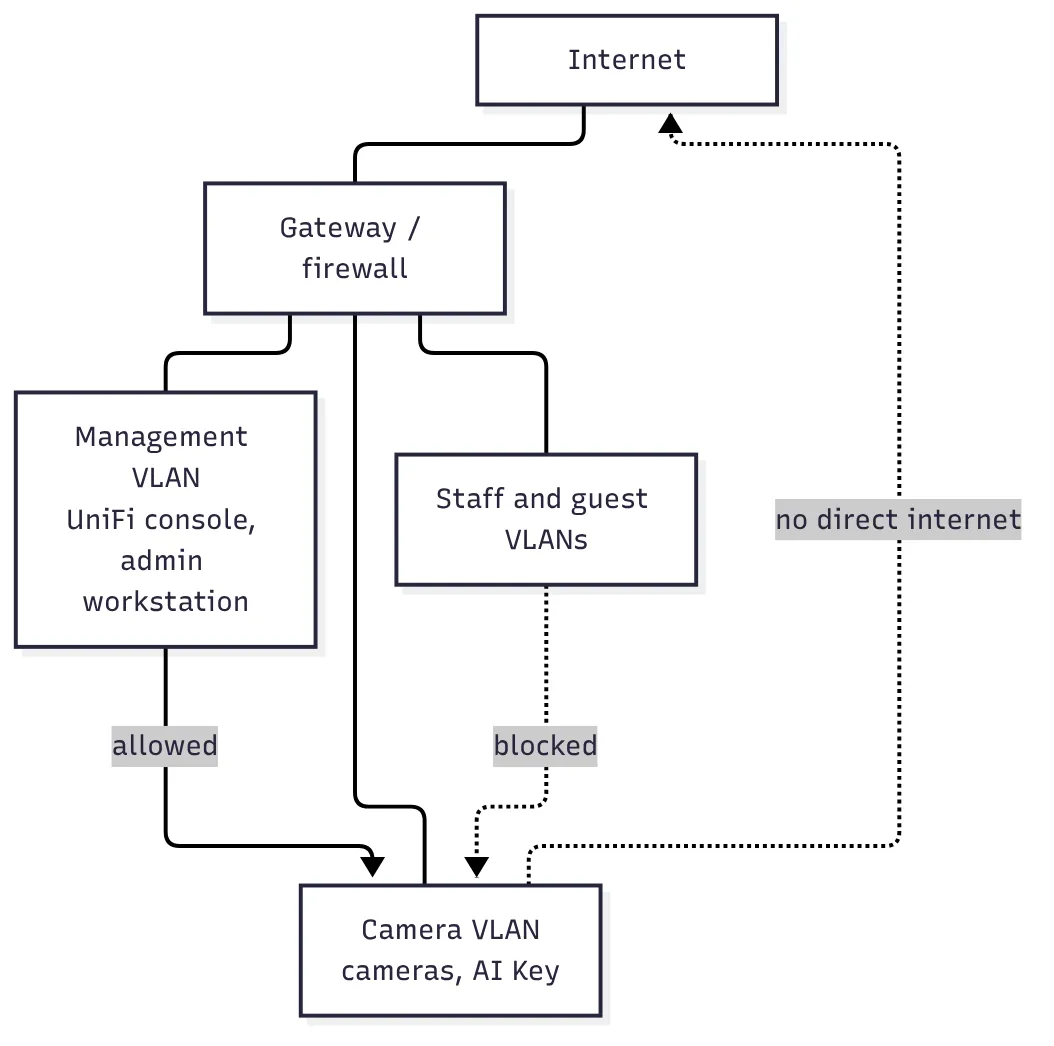 The layout I aim for: cameras and camera appliances on their own VLAN, reachable from management only.
In practice that means:
- Cameras and camera appliances, including the AI Key, go on a dedicated camera VLAN.
- Staff and guest networks can’t reach the camera VLAN at all. People watch video through the Protect app, not by talking to cameras directly.
- Only the management network can reach camera devices, for updates and troubleshooting.
- Cameras don’t get direct internet access unless something specific needs it.
Test it, don’t assume it
Firewall rules have a way of looking right in the UI and not doing what you meant. After any change, I test from the networks that are supposed to be blocked. This Bash script tries a handful of common ports on camera-network addresses from whatever machine you run it on. Plug a laptop into the staff or guest network and run it:
#!/usr/bin/env bash
# Run from a laptop on the staff or guest network.
# Every line should say BLOCKED. Anything OPEN is a hole in your segmentation.
targets=("192.168.30.10" "192.168.30.21")  # AI Key and a camera on the camera VLAN
ports=(22 80 443 554 7441 7447)

# Without timeout, every probe would fail and look BLOCKED. Stop instead.
# Homebrew's coreutils on macOS installs it as gtimeout.
to=$(command -v timeout || command -v gtimeout) || {
  echo "timeout not found. On macOS: brew install coreutils" >&2
  exit 1
}

for ip in "${targets[@]}"; do
  for port in "${ports[@]}"; do
    if "$to" 2 bash -c "exec 3<>/dev/tcp/$ip/$port" 2>/dev/null; then
      echo "OPEN     $ip:$port"
    else
      echo "BLOCKED  $ip:$port"
    fi
  done
done
Change the addresses to match your camera VLAN. It uses Bash’s built-in /dev/tcp plus the timeout command, which comes with GNU coreutils on Linux. On a Mac, install coreutils with Homebrew first; the script stops with a message if timeout isn’t there, so a missing tool can’t pass for a clean result. If anything comes back OPEN from the guest network, fix that before you do anything else.
📝 Note: A BLOCKED result only means the connection didn’t complete in two seconds. That’s what you want here, but if you’re testing from a network that’s supposed to have access, an unexpected BLOCKED can also mean the device is offline.
The bigger point for MSPs and integrators
If you install cameras for clients, you own the patch story for everything in that system, not just the recorder. The AI Key, the console, the cameras, the switches they plug into. Clients don’t know which box does what, and they shouldn’t have to.
We at Emerald Security treat the camera system as part of the managed network: same inventory, same patch schedule, same monitoring. It’s less exciting than new AI features, but it’s what keeps an add-on like the AI Key from becoming the weak spot.
Sources
- Ubiquiti patches high-severity security bugs in its security appliance AI Key, Cybernews, October 14, 2026
- CVE-2026-110459, Vulners, October 14, 2026
- CVE-2026-110455: UniFi Protect AI Key Input Validation Flaw, Strix, October 14, 2026
- CVE-2026-110456: UniFi Protect AI Key Improper Access Control, Strix, October 14, 2026
- CVE-2026-110457, Vulners, October 14, 2026
- CVE-2026-110458, Vulners, October 14, 2026
- CVE-2026-110454, Vulners, October 14, 2026
- Ubiquiti security advisory (AV26-850), Canadian Centre for Cyber Security, August 2026