Back in October I wrote about locking down remote access tools after Huntress’s report on RMM abuse. This week gave us a sharp example of why.
Starting Wednesday, November 11, ConnectWise reported an active campaign in which a threat actor got unauthorized access to cloud-hosted ScreenConnect instances belonging to MSPs and used them to push a toolkit called SCKit to customer machines. Microsoft Threat Intelligence published a detailed write-up today confirming the activity. The part that should get every MSP’s attention is what SCKit does after it lands: it sets a trap for the technician who connects to fix the machine.
This post covers what happened, as far as it’s public, what I’d check right now, and a read-only PowerShell script to look for the artifacts Microsoft documented.
What happened
From Microsoft’s November 13 write-up:
- The reported entry point is a ScreenConnect extension, not ScreenConnect itself. Extensions are add-ons installed on the ScreenConnect server. The RMM+ extension family exposes remote-command APIs protected by a separate passphrase instead of the normal console sign-in. ConnectWise’s advisory describes a flaw in RMM+ versions 1.0.31 and 1.0.32: when no access key was configured, the extension accepted an empty key, so an unauthorized caller could send commands to managed endpoints without signing in. ConnectWise says the entry method for this campaign is still under investigation.
- Step one on the endpoint is a second ScreenConnect client. The attacker uses the MSP’s own instance to run
cmd.exe, which usescurl.exeto download a ScreenConnect installer from an attacker-controlled server toC:\Windows\Temp\sc.msiand install it silently. That client connects to the attacker’s ScreenConnect instance. Locking down your own console doesn’t remove it. - Then the toolkit. A batch launcher pulls a PowerShell decoder, which decrypts the SCKit bundle using a key derived partly from the machine’s own
MachineGuidand extracts it under%TEMP%. - Persistence. Scripts go under
C:\ProgramData\RelayTrap, aRelayTrapLiteAlertvalue is added to the machine-wideRunkey, a scheduled task starts a watcher, and the kit writes Microsoft Defender exclusions for its staged files. - The technician trap. The watcher builds RelayTrap, a malicious stand-in for the ScreenConnect client on that endpoint. When a technician connects with a vulnerable host client, RelayTrap tries to push the launcher back down the session to the technician’s workstation.
- Then the console. On the technician’s machine, the kit is designed to steal ScreenConnect session cookies from Chrome, Edge and Opera, and use that authenticated console session and the Shared Toolbox to push payloads to other devices the technician can reach.
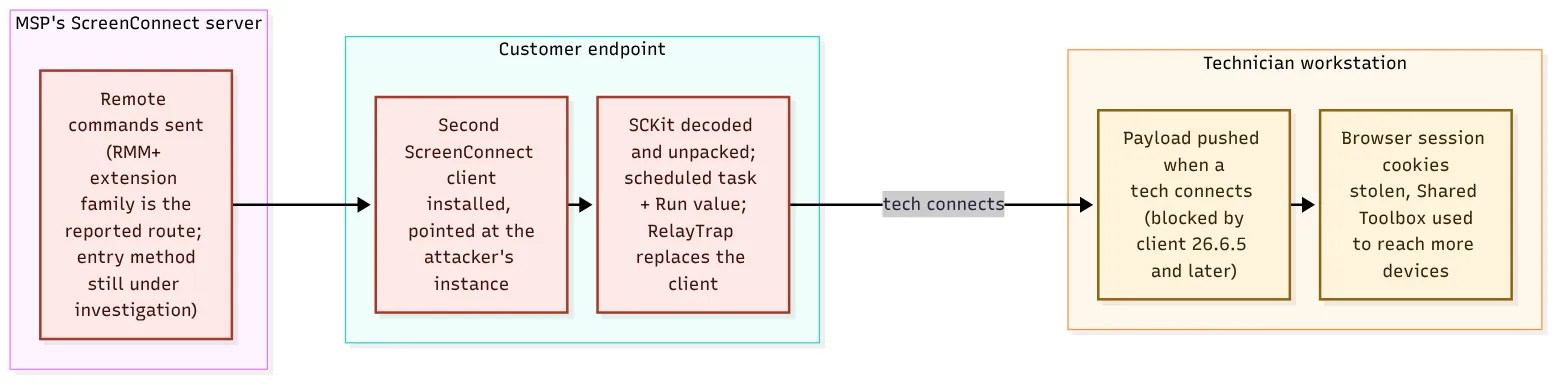 The SCKit chain as Microsoft describes it. The jump to the technician is the toolkit’s design; Microsoft notes it isn’t a confirmed sequence of infections.
The good news: ConnectWise says ScreenConnect client 26.6.5 and later block the endpoint-to-technician transfer, which is the fix for CVE-2026-84869, released September 8. The catch, which Microsoft calls out directly: updating the cloud console does not update the host client on each technician’s workstation. Those have to be checked one by one.
Why this one is different
Most RMM abuse stories are about an attacker using a remote access tool. This one turns the MSP’s own support workflow into the delivery mechanism. A customer calls, says their PC is acting strange, and the natural move is to remote in and look. With SCKit, that’s exactly what the kit is waiting for.
That’s why Microsoft’s guidance is blunt: don’t investigate a suspect machine through ScreenConnect. Use EDR live response or another approved out-of-band method, and include any technician workstation that connected to it.
What I’d do today
If you run ScreenConnect, here’s my order of operations:
- Inventory your extensions. In the ScreenConnect admin, check the installed extensions and their history. Microsoft and ConnectWise list five to keep disabled: Labtech Plus, RMM Plus, RMM+, RMM Plus Password Link and RMM+ Password Link. If you had any of them, treat your instance as in scope and look at what commands ran through it.
- Update every technician’s host client to 26.6.5 or later. Check each workstation, not just the server. This is the step I’d expect to be missed.
- Pull your audit records before anything rolls over. Microsoft recommends keeping extension, authentication, Run Command and Toolbox records together with endpoint process, file, task and registry history. Look in the Toolbox history for tools that were uploaded and then removed.
- Hunt on endpoints with a tool other than ScreenConnect. The script below is read-only. Run it through your EDR’s live response, your RMM if it’s a different product, or a WinRM session.
- If you find something, revoke sessions from a clean device. Invalidate ScreenConnect web sessions and identity-provider sessions and rotate credentials. Microsoft notes that changing a password doesn’t kill every existing session. Rebuild machines where you can’t confirm what’s on them.
- Don’t use the kit’s own cleanup script. Microsoft points out that SCKit’s cleanup mode can re-deploy the toolkit unless a specific flag is set.
📝 Note: Removing the rogue ScreenConnect client alone doesn’t remove SCKit’s persistence or invalidate any stolen web sessions. Treat cleanup as an incident, not an uninstall.
A read-only check for SCKit artifacts
This PowerShell script looks for the file paths, Run value, scheduled tasks, Defender exclusions and DNS cache entries that Microsoft documented, and lists every ScreenConnect client service on the machine with the relay host it connects to. It doesn’t change anything. Run it elevated so it can read Defender settings.
# Check-SCKit.ps1 - read-only check for SCKit artifacts described by
# Microsoft Threat Intelligence on 2026-11-13. Run elevated, NOT through ScreenConnect.
$findings = New-Object System.Collections.Generic.List[string]
$failed   = New-Object System.Collections.Generic.List[string]   # checks that couldn't run

# 1. Files and folders the kit uses (SCKit* folders in system and per-user Temp)
$paths = @('C:\ProgramData\RelayTrap', 'C:\Windows\Temp\sc.msi')
$tempDirs = @('C:\Windows\Temp') + @((Get-Item 'C:\Users\*\AppData\Local\Temp' -Force -ErrorAction SilentlyContinue).FullName)
foreach ($t in ($tempDirs | Where-Object { $_ })) {
    try   { $paths += (Get-ChildItem -LiteralPath $t -Directory -Filter 'SCKit*' -Force -ErrorAction Stop).FullName }
    catch { $failed.Add("Temp folder not readable: $t") }
}
foreach ($p in ($paths | Where-Object { $_ })) {
    if (Test-Path -LiteralPath $p) { $findings.Add("Path present: $p") }
}

# 2. Machine-wide Run value
try {
    $run = Get-ItemProperty 'HKLM:\SOFTWARE\Microsoft\Windows\CurrentVersion\Run' -ErrorAction Stop
    if ($run.PSObject.Properties.Name -contains 'RelayTrapLiteAlert') {
        $findings.Add("Run value present: RelayTrapLiteAlert = $($run.RelayTrapLiteAlert)")
    }
} catch { $failed.Add("HKLM Run key: $($_.Exception.Message)") }

# 3. Scheduled tasks pointing at RelayTrap or SCKit
try {
    foreach ($task in Get-ScheduledTask -ErrorAction Stop) {
        $cmd = ($task.Actions | ForEach-Object { "$($_.Execute) $($_.Arguments)" }) -join ' '
        if ($cmd -match 'RelayTrap|SCKit') { $findings.Add("Scheduled task: $($task.TaskPath)$($task.TaskName) -> $cmd") }
    }
} catch { $failed.Add("Scheduled tasks: $($_.Exception.Message)") }

# 4. Defender path exclusions that match the kit's staging
try {
    $exclusions = @((Get-MpPreference -ErrorAction Stop).ExclusionPath) | Where-Object { $_ }
    if ($exclusions -match '^N/A') {
        $failed.Add('Defender exclusions: not readable (run elevated)')
    } else {
        foreach ($ex in $exclusions) {
            if ($ex -match 'sc\.msi|CWInstall_|RelayTrap|SCKit') { $findings.Add("Defender exclusion: $ex") }
        }
    }
} catch { $failed.Add("Defender exclusions: $($_.Exception.Message)") }

# 5. DNS cache hits for the domains in Microsoft's write-up
$iocDomains = 'mo7sen\.dev|payproofkit\.com|cdn007-digitaldownloads\.com|newnewnew\.gotdns\.org|soxnewwork\.homedns\.org'
try {
    Get-DnsClientCache -ErrorAction Stop | Where-Object { $_.Entry -match $iocDomains } |
        ForEach-Object { $findings.Add("DNS cache: $($_.Entry)") }
} catch { $failed.Add("DNS cache: $($_.Exception.Message)") }

# 6. Every ScreenConnect client service and the relay host it talks to
try {
    $clients = Get-CimInstance Win32_Service -Filter "Name LIKE 'ScreenConnect Client%'" -ErrorAction Stop | ForEach-Object {
        $relay = if ($_.PathName -match '[?&]h=([^&"]+)') { $Matches[1] } else { 'unknown' }
        [pscustomobject]@{ Service = $_.Name; State = $_.State; StartMode = $_.StartMode; RelayHost = $relay }
    }
    "== ScreenConnect clients on $env:COMPUTERNAME =="
    $clients | Format-Table -AutoSize | Out-String | Write-Output
} catch { $failed.Add("ScreenConnect services: $($_.Exception.Message)") }

if ($findings.Count -gt 0) { "== POSSIBLE SCKIT ARTIFACTS =="; $findings }
if ($failed.Count -gt 0)   { "== CHECKS THAT DID NOT RUN (scan incomplete) =="; $failed }
if ($findings.Count -eq 0 -and $failed.Count -eq 0) {
    "No SCKit artifacts from the published list were found."
}
What to look for in the output:
- More than one ScreenConnect client, or a client whose relay host isn’t yours. Your own client’s service name includes an ID unique to your instance. Anything else needs an explanation.
- Any line under “POSSIBLE SCKIT ARTIFACTS.” Isolate that machine, include every technician who connected to it recently in scope, and work it as an incident.
- Anything under “CHECKS THAT DID NOT RUN.” The scan is incomplete. Fix the cause (usually running without elevation) and run it again before calling the machine clean.
📝 Note: An empty result means none of the published indicators were found. It doesn’t prove a machine is clean. Attackers change file names and domains, and this list will grow as more vendors publish.
The bigger lesson
I said it in October and I’ll say it again: your remote access tool is the most powerful account in every client’s environment. This week added a second point. Every add-on to that tool is part of your attack surface, and it may have its own authentication that doesn’t follow your console’s MFA and roles.
What I tell other MSPs, and what we do at Emerald Security:
- Keep a written list of every extension or integration on your remote access and RMM servers, who installed it and why. Remove what you don’t use.
- Make sure every path into the tool, extensions included, goes through MFA and named accounts.
- Treat technician workstations as high-value systems: patched, with EDR, and not used for general browsing.
- Have an out-of-band way into client machines that doesn’t depend on the tool you’re investigating.
If you’re a business owner and an IT provider supports your computers remotely, it’s fair to ask them this week whether they use ScreenConnect, whether they had any of these extensions installed, and what they checked. If you’d like a second opinion on how remote access to your network is set up, get in touch.
Sources
- SCKit abuses ScreenConnect to deploy remote access and target technician sessions, Microsoft Security Blog, November 13, 2026